AVIF, WebP and Background Images in Divi 5 — What Actually Works and Why
Adding an image to Divi 5 looks straightforward at first. You pick a file, drop it into an image module or set it as a section background, and you’re done.
The complexity starts when you want to go a step further — serving a modern format like AVIF, but without risking broken layouts or unpredictable behavior for users whose browsers don’t support it yet.
And that’s where three things that are easy to confuse start to matter a lot:
- a standard image embedded as
<img>, - an image served through
<picture>, - an image set as a section background through CSS.
Divi 5 doesn’t resolve all of this automatically. If you want to consciously handle AVIF, WebP, fallbacks and section backgrounds, you need to know where Divi’s defaults end and where your own implementation begins.
What Divi 5 does natively
When you insert an image through a standard Divi image module, you get a classic HTML image. From the browser’s perspective, it’s just an <img> tag — not a multi-format delivery mechanism.
This matters because a lot of people assume that since WordPress and Divi handle responsive images, modern format support comes along for free. It doesn’t quite work that way.
What you get natively:
- an image as
<img>, - multiple size variants via
srcset, - automatic size selection based on the user’s device.
That’s genuinely useful — but it solves the size problem, not the format problem. The browser picks a smaller or larger version of the same file. If you uploaded a JPG, users get a JPG. If you uploaded AVIF, they get AVIF. No automatic conversion, no fallback logic.
Why a single <img> isn’t always enough
For a long time, one image and one format was perfectly fine. Modern formats changed that calculation. AVIF can be significantly lighter than older formats at comparable quality, which naturally leads to the question: can I just upload AVIF and call it done?
Not quite. The issue isn’t that AVIF is bad — it’s that not every browser and environment handles it with equal reliability. Modern browsers manage it well, but if you want to approach this safely, you can’t assume every user will see the same result.
That’s why a single <img> with one source file starts to feel limiting — not just as a performance question, but as a compatibility one. You need a way to offer the best format a browser can handle while ensuring everyone else gets something that works.
That’s exactly what <picture> is for.
What <picture> actually does
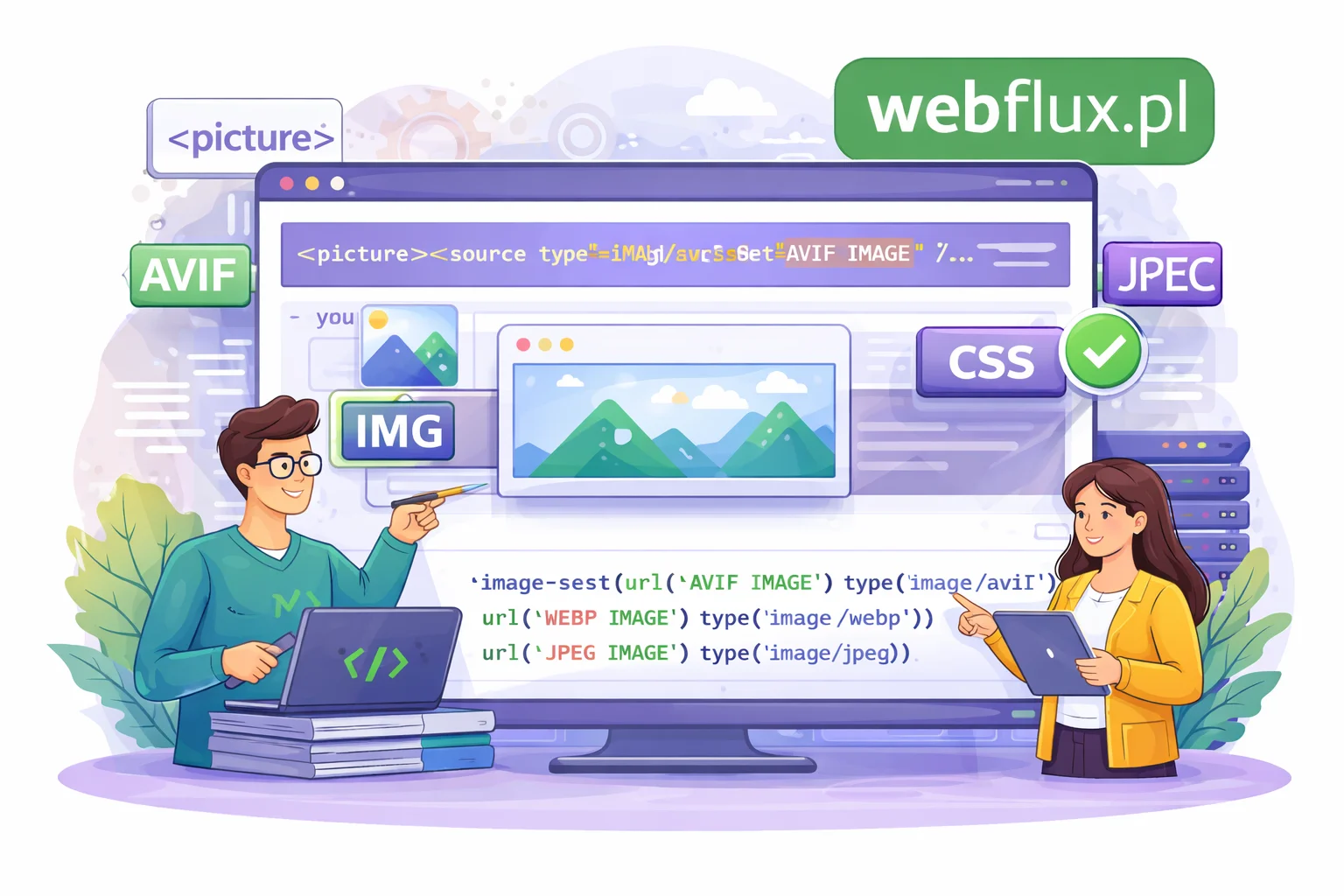
In short: <picture> gives the browser a choice.
Instead of pushing one file to everyone, you say: if you support AVIF, use AVIF. If not, try WebP. If neither works, here’s a JPG.
<picture>
  <source srcset="image.avif" type="image/avif">
  <source srcset="image.webp" type="image/webp">
  <img src="image.jpg" alt="Image description">
</picture>
That’s the core difference between <img> and <picture>. An <img> says: here’s an image. A <picture> says: here are several versions of the same image — pick the best one you understand.
The <img> at the end acts as the safe fallback. Even if a browser doesn’t recognize any of the modern formats, it will still display something usable.
Where Divi’s job ends
This is the part that surprises some people.
Divi 5 does not automatically build a <picture> element with format fallbacks for you. The builder gives you image modules, section settings, responsive controls and layout tools — but it doesn’t work like this: you upload a JPG, the system generates AVIF and WebP, wraps them in a <picture>, adds a fallback, and everything sorts itself out.
That’s not how it works.
You’re effectively working on three levels:
- Stay with what Divi gives you natively — fast, simple, no manual work.
- Use a Code Module to write
<picture>manually — full control for specific elements. - Use a CSS section background — which is a different mechanism entirely.
That third level is where things get genuinely interesting.
The practical path: Code Module and manual <picture>
If you need a specific image served in a modern format with a proper fallback, the most straightforward approach in Divi 5 is surprisingly simple: a Code Module.
This makes sense for:
- a hero image,
- an important above-the-fold element,
- a featured section visual,
- any single image where performance and rendering quality actually matter.
The code looks like this:
<picture>
  <source srcset="/wp-content/uploads/2026/04/hero.avif" type="image/avif">
  <source srcset="/wp-content/uploads/2026/04/hero.webp" type="image/webp">
  <img
    src="/wp-content/uploads/2026/04/hero.jpg"
    alt="Image description"
    width="1200"
    height="675"
    loading="eager"
    decoding="async">
</picture>
The browser tries AVIF first, falls back to WebP if needed, and falls back to JPG if neither works. That’s exactly the behavior you can’t get from a standard Divi image module.
A note on loading="eager" for hero images
If this image sits high on the page and is part of the first visible screen, you don’t want it to load late. Using loading="eager"tells the browser not to defer this image the way it would a typical image further down the page.
That said, don’t apply this everywhere. If everything is marked as eager, the attribute loses meaning. Reserve it for truly critical images — the rest should either use lazy loading or simply rely on default browser behavior.
Section backgrounds — where things get more complex
In Divi, you often don’t want to embed an image in the content at all. You want it as a section background — a hero background, a CTA block, a full-width banner. And the natural question that follows is: can I use <picture> for a section background?
Not directly. And understanding why is important.
When you set a section background in Divi, you’re not embedding an HTML element — you’re applying a CSS style. What you get is essentially:
background-image: url("hero.jpg");
This is a different world from <picture>. One lives in HTML, the other in CSS. CSS won’t accept an HTML tag as a background value. You can’t do background-image: <picture> — that’s simply not how either mechanism works.
CSS does have its own format-selection mechanism
CSS has a property called image-set() that works similarly in spirit:
.hero {
  background-image: image-set(
    url("/wp-content/uploads/2026/04/hero.avif") type("image/avif"),
    url("/wp-content/uploads/2026/04/hero.jpg") type("image/jpeg")
  );
  background-size: cover;
  background-position: center;
}
The idea is the same: if the browser supports AVIF, use it. Otherwise, fall back to JPG.
But here’s the important caveat: image-set() doesn’t have the same level of universal browser support and predictability as HTML’s <picture>. You’re using a mechanism with incomplete standardization to deliver a format with incomplete support. That’s not a reason to avoid it — it’s a reason to understand it. image-set() is the right tool when you genuinely need a CSS background and want to approach format delivery more thoughtfully. It’s just not the same safety net that <picture>provides in HTML.
What if you want a „background” but still use <picture>?
There’s a useful workaround worth knowing.
You can create a section that looks like it has a background image while technically using <picture> as a positioned HTML layer:
- the section gets
position: relative, - the
<picture>element is absolutely positioned to fill the entire section, - the content sits above it with a higher
z-index, - the
<img>inside usesobject-fit: cover.
Visually, it behaves like a background. Technically, you’re still using the full <picture> mechanism with proper fallback logic. This is often the best compromise when you want the aesthetic of a full-bleed background but don’t want to give up the reliability of HTML-based format selection.
Choosing the right approach
Stick with native Divi when:
- the image isn’t critical to performance or rendering,
- you don’t need format fallbacks,
- you want to move fast.
Use a Code Module with <picture> when:
- you want AVIF with a proper fallback,
- the image is important and above the fold,
- you need full control over a specific element.
Use CSS image-set() when:
- you genuinely need a CSS background image,
- you want to stay with
background-image, - you understand that the fallback model is less predictable than
<picture>.
Verifying your implementation
After setting everything up, open DevTools and check what the browser actually requests. Don’t assume the code is working just because you pasted it in.
Check that:
- a modern browser is actually fetching the AVIF file,
- the fallback works as expected in a browser that doesn’t support AVIF,
- the JPG isn’t being fetched despite your configuration,
- the hero isn’t loading too late,
- the section background behaves exactly as you intended.
This is the step that separates „I have the code” from „I have a working implementation.”
The most common mistake in all of this
The most common mistake isn’t bad code. It’s conflating three separate mechanisms:
- a standard HTML image,
<picture>,- a CSS background.
Once you keep those three separate in your head, most of the confusion disappears — why you can’t use <picture> as a background value, why Divi doesn’t handle AVIF fallbacks automatically, why srcset alone doesn’t solve the format problem, and why section backgrounds behave differently from image modules.
Summary
If you’re just adding images to Divi 5, the native approach is usually fine.
If you want to go further and serve AVIF with a reliable fallback:
- for standard content images,
<picture>via a Code Module is the cleanest solution, - for section backgrounds,
image-set()in CSS is the available tool — but it operates under different constraints than HTML’s native fallback model.
The topic is interesting precisely because of that distinction. It’s not just about the image itself. It’s about which mechanism is selecting the right version of that image for each user.